Accept court bookings
Set your hours and prices, then approve the slot requests players send.
- 1.
Open your court's page and tap Schedule.
- 2.
Turn on Take slot requests and set the Number of courts.
- 3.
Set Opening hours, then prices under Prices, then your Payment details. Only players you approve see those details.
- 4.
Tap Save schedule.
- 5.
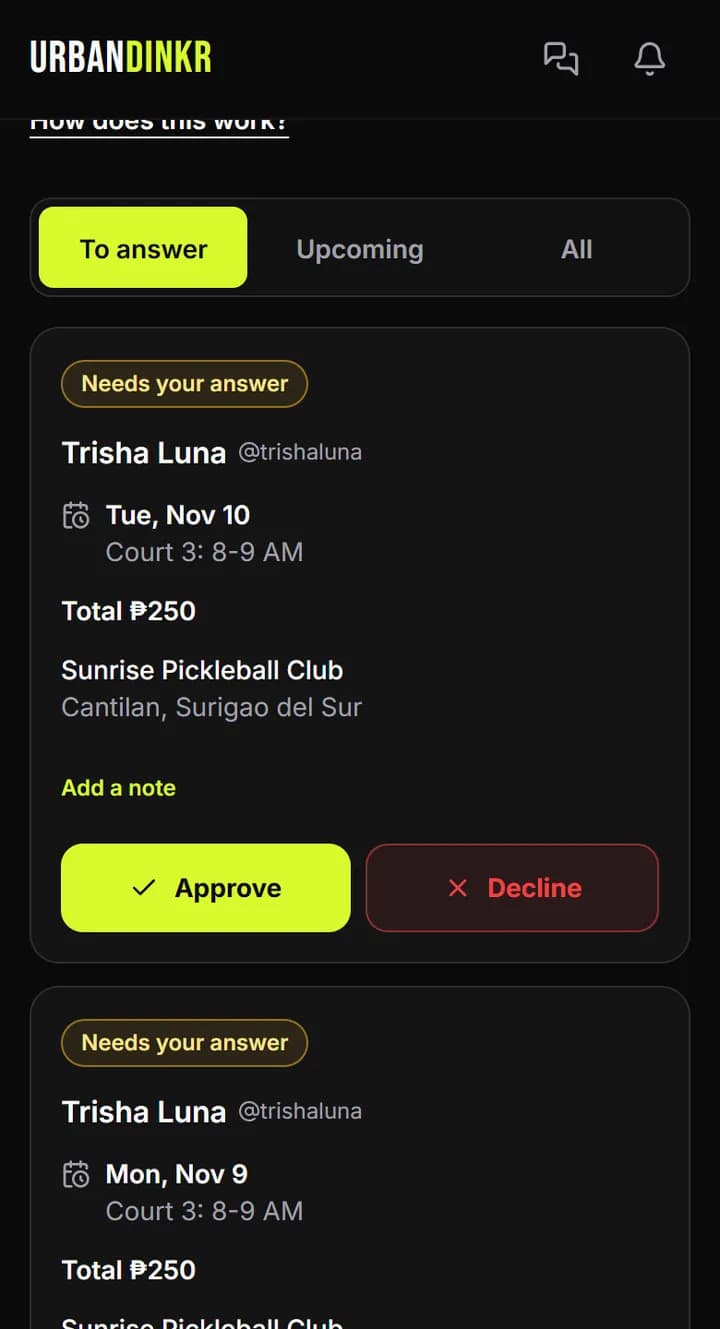
New requests come as notifications. Open Hosting, then Court requests.
- 6.
Under To answer, tap Approve or Decline. You can add a note. The player is told either way.
Who can do this
Only the host who added the court, or an admin, can set its schedule and answer its requests.
Walk-ins and closures
On the schedule, tap an open slot to block it for a walk-in, maintenance, a private booking or an event.
Cancelling an approved slot
Cancel slot opens the slots again and notifies the player. Sort out any refund with them directly.
Payments
No online payments. Pay at the venue or GCash the court manager directly.
Pausing
Turn off Take slot requests. The schedule stays visible.
Still stuck? Contact us