Start a match
Set the lineup before you play. Afterwards, snap the score and send it to your opponents to confirm.
- 1.
On a phone, tap +, then Start a match. On a computer, open Matches, then Start match.
- 2.
Under Lineup, pick Doubles or Singles, then your partner and opponents. Everyone needs an URBANDINKR profile.
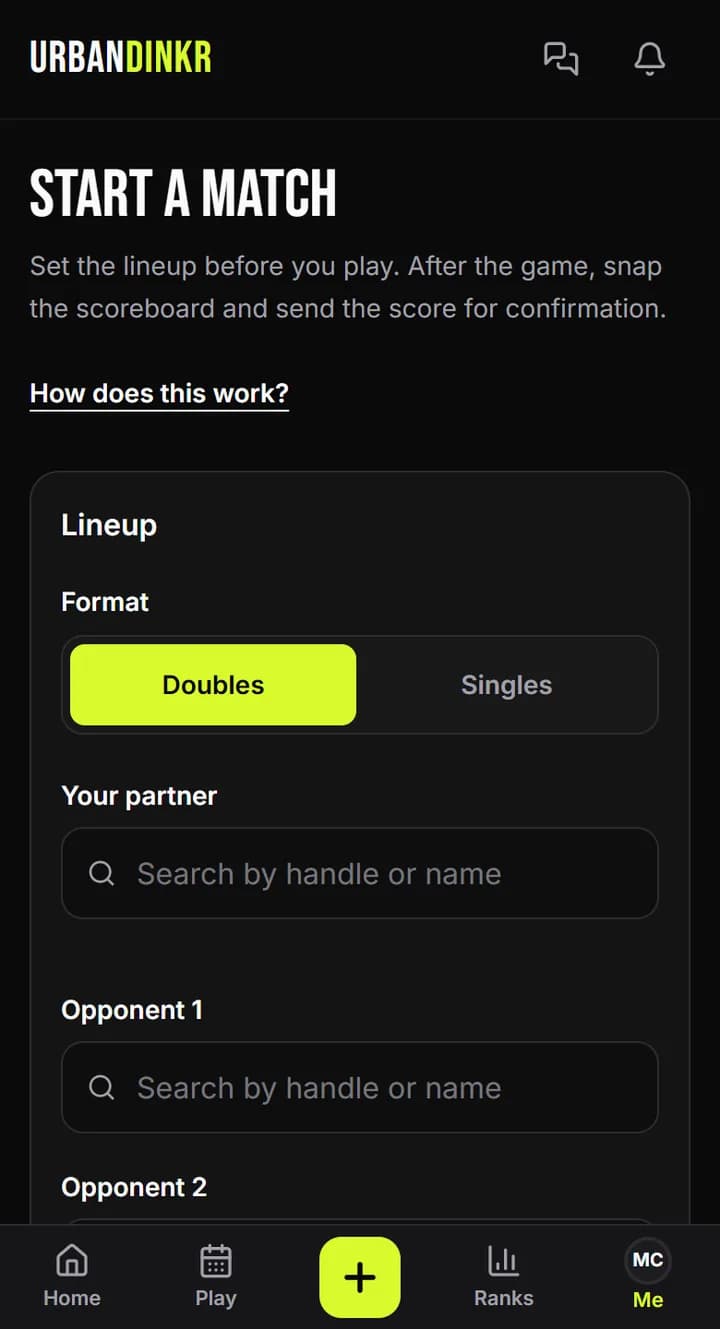
- 3.
Pick Game to (points): 11, 15 or 21.
- 4.
Optional: take the lineup photo, with everyone in frame, and choose Who can see the photos.
- 5.
Tap Start match. Everyone you tagged gets a notification.
- 6.
After the last point, open the match from Matches. Under Finish match, take the score photo, check the numbers and tap Send for confirmation.
- 7.
Your opponents confirm the score. Ratings change only after that.
Time limits
Finish within 6 hours of starting. The lineup photo has to be taken within 30 minutes of starting. The score photo has to come at least 5 minutes after it. You can have 3 matches in progress at once. If one times out, log it by hand instead.
Photo verified
A match with both a lineup photo and a score photo gets a Photo verified badge.
Reading the score from the photo
Read the score from the photo is on by default. When it's on, the photo and the players' names go to Anthropic, an AI provider, to read the score. Turn it off and you enter the score yourself. Either way, check the numbers before you send.
Tagged by mistake?
Open the match and tap That's not me. That cancels it for everyone and deletes its photos.
Still stuck? Contact us